filmil’s Auto Reload: a tab reloader with two permissions
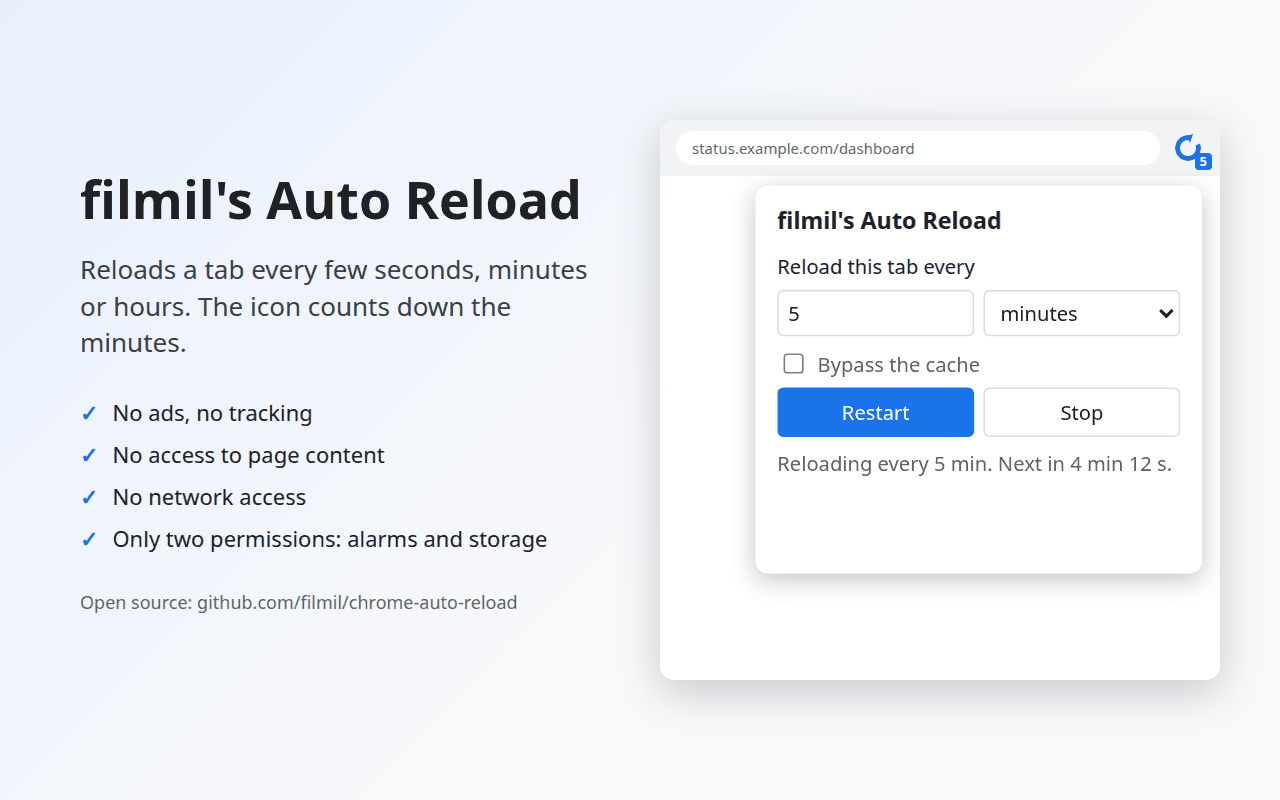
filmil’s Auto Reload is a Chrome extension that reloads a tab every few seconds, minutes or hours, and can do nothing else. It asks for two permissions, shows no warning when you install it, and cannot read the pages it reloads. This post explains why I wrote one more reload extension, how it counts down on its icon, and how a release goes from a commit to the Chrome Web Store without anyone typing a password.
Why another one
I keep a few dashboards open that do not refresh themselves. Reloading them by hand is a small chore, and the Chrome Web Store has many extensions that do it for you.
Most of them ask to “read and change all your data on all websites”. An extension with that permission can read every page you open, including your mail and your bank. Several popular extensions have been sold to new owners, who then added adware or tracking in an update. The users kept the extension, and the extension kept its permissions.
Reloading a tab does not need any of that. So I wrote a small extension whose permissions make the bad cases impossible, instead of merely unlikely.
Two permissions
The extension is a Manifest V3 extension with a service worker and a popup.
Its manifest asks for alarms and storage, and nothing else:
chrome.tabs.reload(tabId)works without thetabspermission. Without it, the extension knows a tab only by its number. It never sees the tab’s address or title.- There are no host permissions and no content scripts. The extension cannot run code in a page, so it cannot read one.
alarmsruns the timer, andstoragekeeps each tab’s interval for the browser session.
Chrome shows no permission warning for these two, so the install dialog is
empty.
A test in the repository fails if the manifest ever asks for more, or if the
code ever calls fetch, opens a socket, or evaluates a string.
A later change that widens what the extension can do has to remove that test
first, in public.
The cost is a limit on speed. Chrome runs an extension’s alarm at most every 30 seconds, so that is the shortest interval. A faster timer needs code that stays awake between reloads: a script in the page, or a hidden background document. Both add permissions and moving parts to an extension whose point is to have few, so I kept the 30 second floor.
A countdown on the icon
The first version showed ON on the icon of a tab that was reloading. The current one shows the minutes left until the next reload, rounded up: 5 means at most five minutes, and 1 means the last minute. A badge fits about four characters, so above 999 minutes it shows hours, such as 17h.
The countdown is harder than it looks, because the service worker does not stay awake. Chrome stops it after about 30 seconds without events, so a timer that updates the badge every minute does not run. Only an alarm wakes the worker.
So each tab gets two alarms. One reloads the tab. The other fires at the exact moment the rounded number changes, sets the new number, and schedules itself for the next change. For a 5 minute interval, that is once a minute, on the minute boundaries of the time left. Chrome also refuses to run an alarm sooner than 30 seconds after it is set. For an interval that is not a whole number of minutes, such as 70 seconds, the first change can therefore show up to 30 seconds late.
The functions that compute the badge text and the time of the next change are plain JavaScript, with unit tests. The tests check, among other things, that the text after each change is the one for the time then left.
A second setting adds a random delay of up to 5 seconds to each reload. Tabs that were started together then do not all reload at the same moment. The badge counts down to the end of the interval and leaves the random delay out; the popup counts down to the reload itself.
Testing in a real Chrome
Unit tests do not show that Chrome accepts the extension, or that an alarm really reloads a page. An end-to-end test does that, with Puppeteer and Chrome for Testing. It loads the extension, serves a test page from a local web server, starts a 30 second interval, and counts the page loads. A second test starts a 2 minute interval, sees 2 on the badge, waits for the badge alarm, and sees 1.
Two details took some time.
Puppeteer could not always find the extension’s service worker, because the
worker may be asleep when the test starts.
The test now computes the extension’s ID itself, opens one of its pages to
wake the worker, and then attaches to it.
Chrome names an unpacked extension after its folder’s path: the first 32 hex
digits of the path’s SHA-256, written with the letters a to p.
The other detail is the sandbox. Ubuntu 23.10 and later block the user namespaces that Chrome’s sandbox needs. The CI job lifts that restriction on its throwaway virtual machine, so the test runs Chrome sandboxed, as users run it.
A reproducible build with Bazel
Bazel builds the release zip.
bazel build //:zip --//:version=2026.10.27 writes the extension’s files
into a zip, with the version filled into the manifest.
Bazel downloads the Node that runs the unit tests by checksum, so the machine
needs no Node of its own for them.
The build checks the version the way Chrome does: one to four integers, each from 0 to 65535, with no leading zeros. A version Chrome would refuse fails the build instead of the upload. The zip has its files in a fixed order with fixed times, so the same source and version give the same zip, byte for byte. A clean rebuild gave the same SHA-256.
Releases, every day there is a change
A GitHub Actions workflow runs every day.
If extension/ changed since the last release, it runs the tests, builds the
zip, unzips it, and runs the Chrome test on the unzipped copy.
Only then does it publish a GitHub release with the zip and its SHA-256.
The test sees the exact file that people download.
The version is the release date: 2026.10.27, with a fourth part for a
second release on the same day.
Chrome needs each new version to be larger than the last, and dates give
that for free.
To the Chrome Web Store, without a password
A second workflow sends the newest release to the Chrome Web Store, through version 2 of the store’s API. It asks the store which versions it has, and uploads the release only when it is newer. Store review can take days, and the store holds one submission at a time. While a version is in review, the workflow sends nothing, and the newest release goes to the store on the first run after the review ends. A rejected version is not sent again; the next release is.
The workflow logs in to Google without a stored key.
GitHub Actions gives each job a signed token that names the repository, the
workflow file and the branch.
Google Cloud’s Workload Identity Federation exchanges that token for a short
lived token of a service account, and the store accepts that account as its
publisher.
The exchange is allowed only for one workflow, webstore.yml, on the main
branch of the repositories I name.
Another workflow or branch in the same repository gets nothing, and there is
no secret to leak.
One Google Cloud project serves all my extensions, since a store publisher can have only one service account. A script in the repository sets it up, and running it again with another repository adds that repository.
One step still needs a person. The first upload of a new extension, with its listing and privacy answers, is done by hand in the store’s dashboard. I could not automate it from a browser either: Chrome does not let any extension script the Web Store’s pages, including the one I use to drive a browser.
Getting it
The source, under the Apache 2.0 license, and every release are on
GitHub.
The extension is on the Chrome Web Store.
To install a release by hand, unzip it, open chrome://extensions, turn on
Developer mode, and choose Load unpacked.
The code was written with Claude, an AI coding assistant, which also wrote this post.